This page is provided to help students obtain information related to their student email accounts, first-time login procedures, as well as the use of Microsoft Outlook and Microsoft Authenticator.
If you are experiencing issues such as:
Unable to log in to your email
Forgot password
First time using your student account
Authentication problems (Authenticator)
Please refer to the questions and guides below before contacting the Helpdesk.
A security app for two-factor authentication (2FA) to protect your account.
My old phone is lost or broken. How can I sign in?
If Microsoft Authenticator was installed on the old phone:
Use an alternative verification method (SMS, email, or security key)
Contact your IT Admin / Helpdesk to reset MFA
After reset, install Microsoft Authenticator on your new phone and re‑register your account
I changed my phone and the Authenticator code is not working
Microsoft Authenticator does not automatically transfer to a new device.
Steps to avoid issues:
Contact the Helpdesk to reset the Authenticator
Re-register on the new device
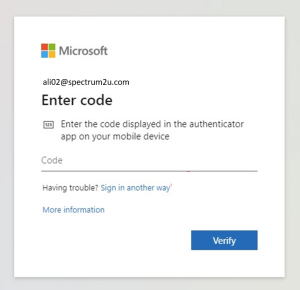
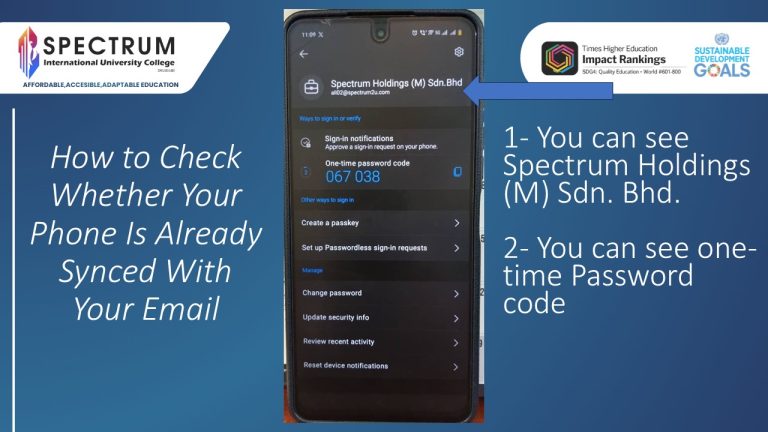
Enter the Code displayed in the authenticator apps on your mobile device. Where i can get the code
Try the following steps:
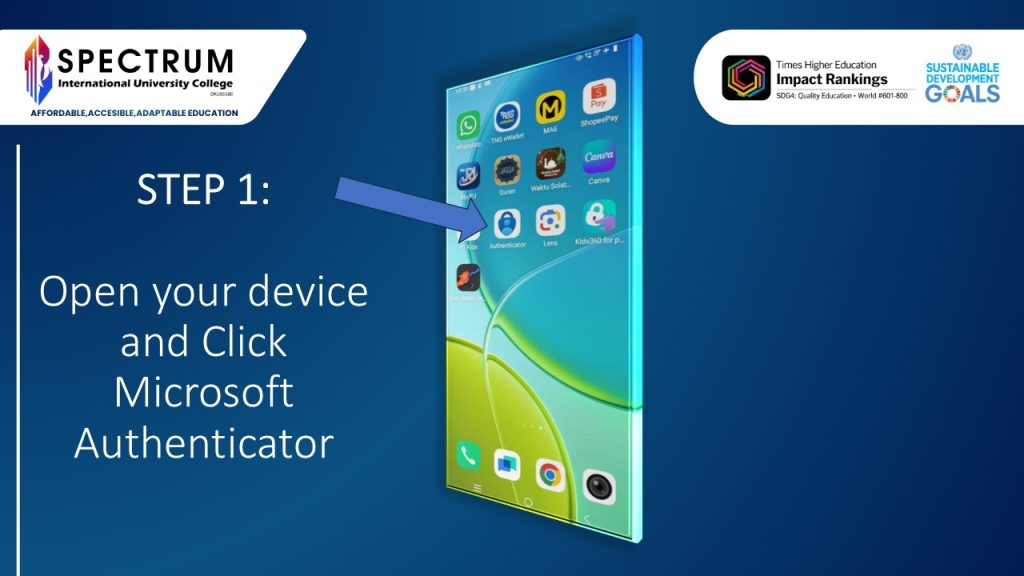
Open your device and Click Microsoft Authenticator
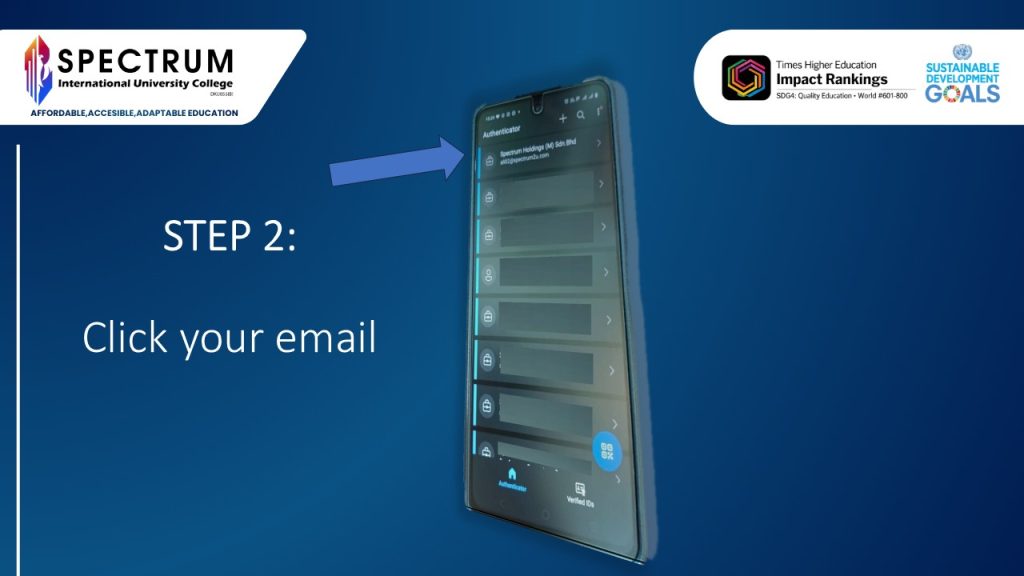
Click your email
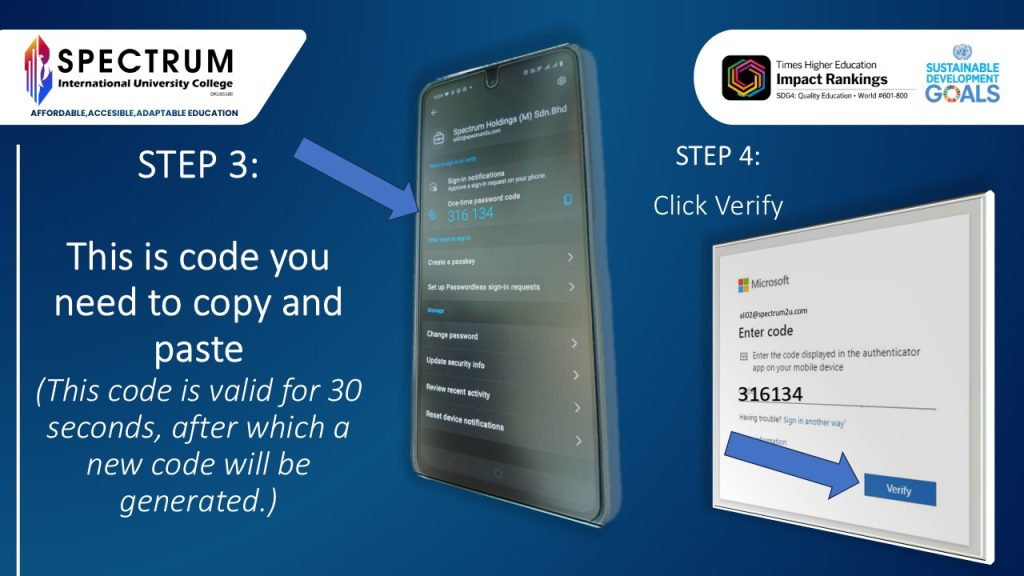
This is code you need to copy and paste (This code is valid for 30 seconds, after which a new code will be generated.)
Click Verify
Step 1
Step 2
Step 3 & 4
Microsoft Authenticator app crashes or cannot open
1- Please check the update. 2- If the issue persists, please uninstall the app and reinstall it. After that, kindly inform the Helpdesk via email to reset the Microsoft Authenticator, and then register it again on your mobile phone.
How to Check Whether Your Phone Is Already Synced With Your Email